TEMPLATE GUIDE
Canva templates for Instagram: how to customize them
A ready-made template organizes the design. Customization is where you add the message, information and choices that represent your brand.
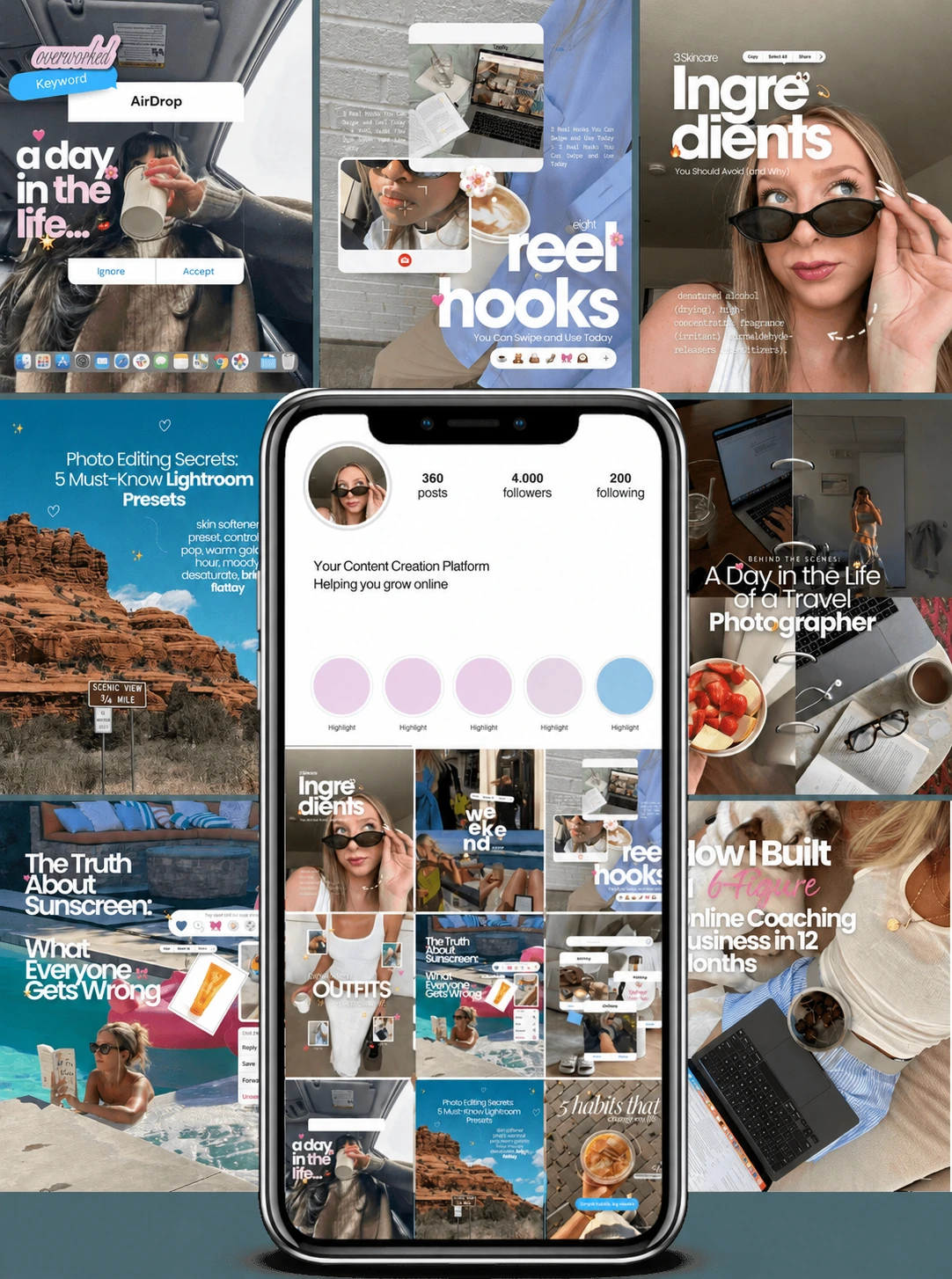
Choose the format to fit the message
Canva templates are editable layouts: they give you a composition with space for text, images and graphics. A single-image post works for information that fits on one screen. A carousel organizes an explanation into steps. A Reel cover introduces a video; it does not replace the video you will publish.
Before opening the editor, write one sentence about what the reader needs to understand. “How to set up a space for product photography” is a more specific topic than “photography tips”. Then choose a template with enough space for the information, without making the text too small.
Customize in five steps
- Gather your references. Prepare your edited copy, photos and the colors you already use. Choose one priority: explain, introduce or invite readers to take action. This preparation keeps you from filling spaces simply because they exist in the template.
- Open the template in Canva. Access the template through the library and work on your design. Give it a name that makes it easy to find later, such as “Brand, photo preparation, September”.
- Replace the content. Replace the headline, paragraphs, photos and identifying details. Check small text, sample names and information that may be hidden over an image. Adapt the language to your audience.
- Adjust the visual identity. Apply your colors and fonts without losing contrast. If a headline is too long, simplify the wording before reducing the font size. Leave space between sections so the text is easy to read.
- Download and check. For a static post, choose an image format available in Canva, such as PNG or JPG. Open the file on your phone and check crops, reading order and information before publishing.
CUSTOMIZATION IN PRACTICE
From blank space to a finished message
Imagine a post with a headline, three supporting lines and an invitation at the end. Here is how to fill each space for a photography topic. The layout below is an exercise created for this guide.
01 · STRUCTURE
Your post headline
- First instruction
- Second instruction
- Third instruction
What action comes next?
02 · CUSTOMIZED COPY
Set up your table for a photo
- Remove distracting objects.
- Move the product toward the light.
- Check the framing.
Choose a product and try it today.
What changed: the headline defines the task, each line suggests an action and the invitation helps readers get started. Use your own photo of the table so the image matches the copy.
How to check that your customization is ready
- Read the headline on its own: is the topic clear?
- Look for names, handles and phrases left over from the template.
- View the post at phone-screen size without zooming in.
- If the three instructions need their own photos, give each one a separate page.
To develop each instruction on its own slide, follow the Instagram carousel outline. If the demonstration needs movement, see the faceless video example.
Free Canva and optional elements
According to Creator Club's product information, the templates work with free Canva. Some designs use optional premium elements: you can replace them, remove them or purchase their use through Canva if you want to keep them. Check your choices before exporting; a Creator Club purchase does not include a Canva Pro subscription.
To learn about the tool's customization options, see the Canva Instagram post maker. Then give your content one last check: is the information accurate, does the photo match what you are presenting, and is the next step clear?
How Creator Club fits into your routine
The library brings together over 2,500+ templates organized into collections, alongside the other materials in the bundle. Choosing a collection helps you keep a consistent visual reference while editing. Explore the previews in the complete offer and choose materials based on how you plan to use them.